Deployments
The deployment view of Cockpit shows an overview of all deployments, their resources and the content of these resources. The deletion of existing deployments is supported in the deployment view, and the content of resources within deployments can be displayed. It is also possible to download single resources from this view.

Search and Sort
Use the search field at the top of the deployment list to find specific deployments. You can search using the unique deployment ID, and partial name matches are also supported.
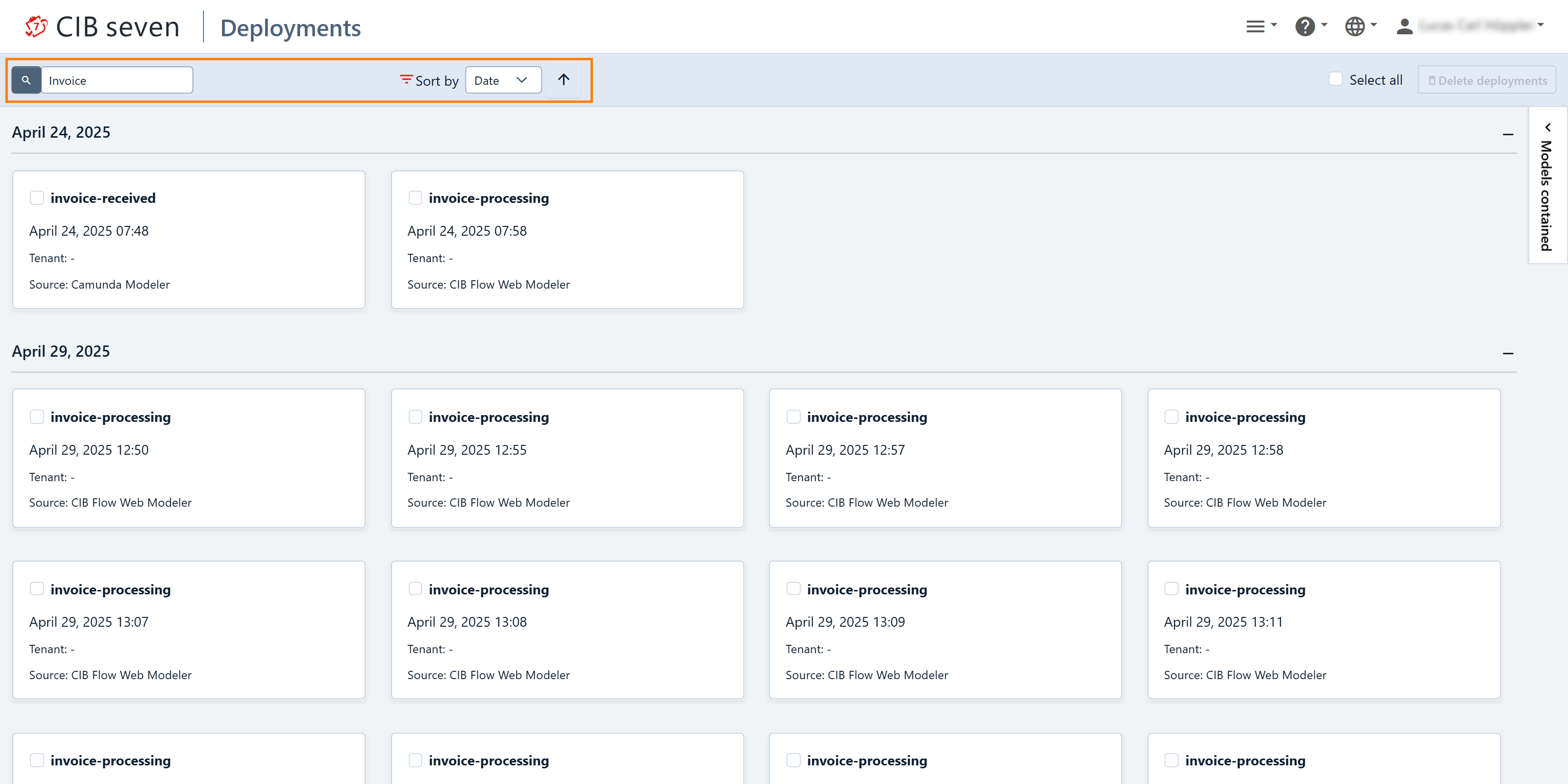
Independently of the search, ordering for the deployment list can be set using the sorting parameter above the search field. It is possible to order by deployment date or name. Clicking on the arrow on the right side of the sorting criterion changes the ordering (ascending and descending).
Delete
To delete a deployment, select the deployment and click the ‘Delete deployments’ button. A confirmation dialog will appear, notifying you that any running instances will also be deleted. The button is highlighted in orange in the screenshot below.
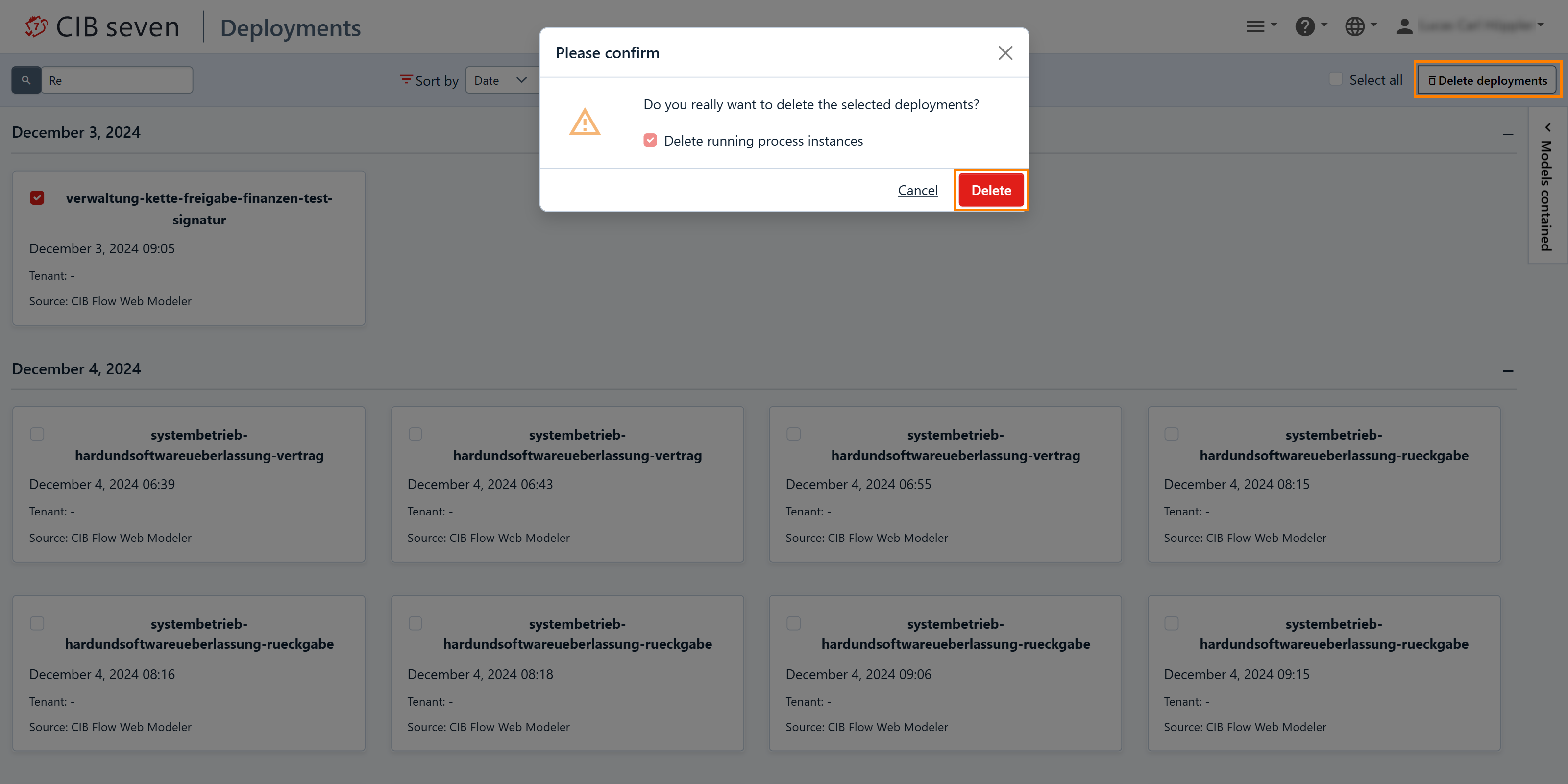
You also can select multiple deployments or even all deployments and delete them.
Definition Resources
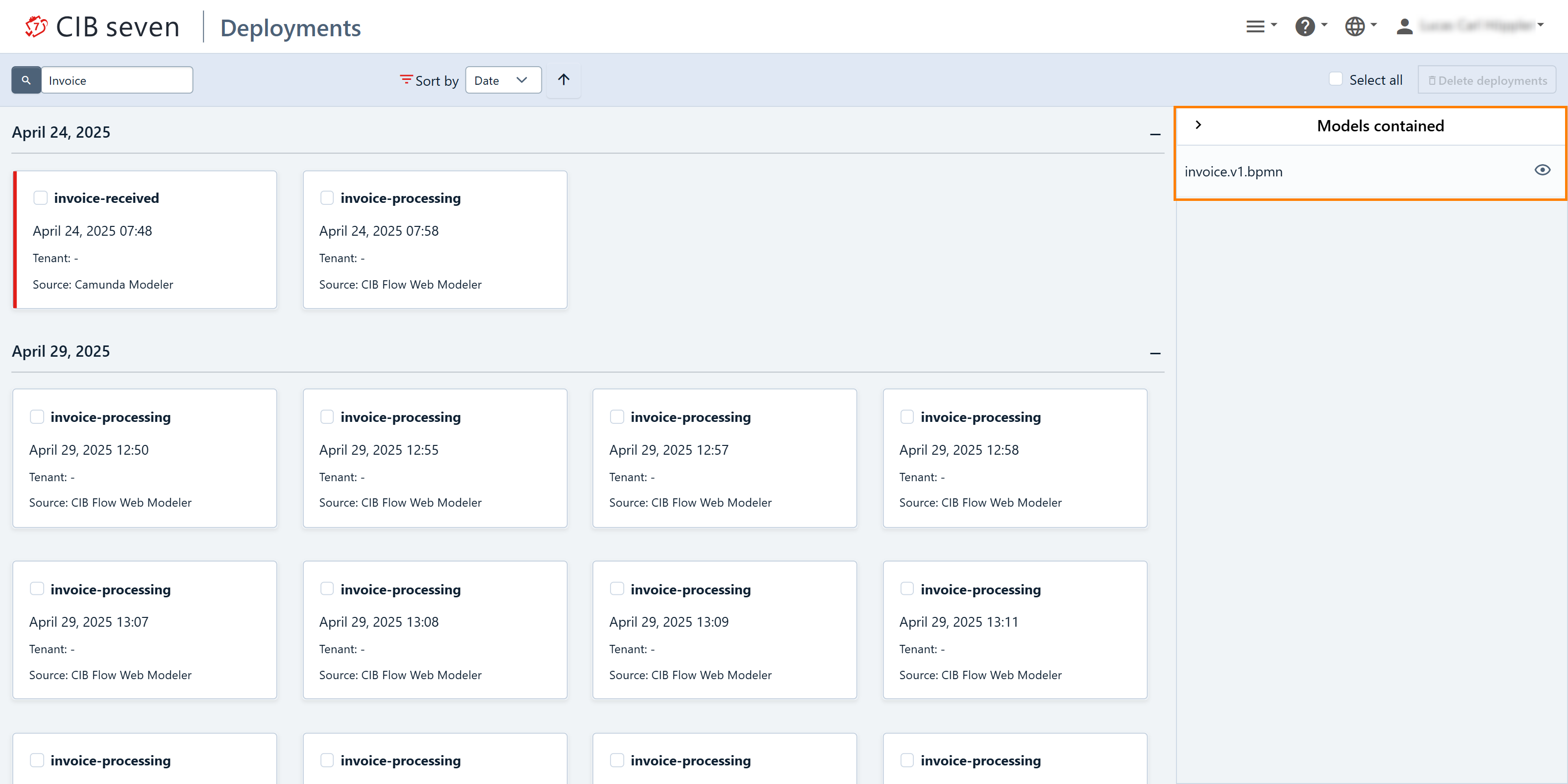
For resources that contain definitions (BPMN, DMN and CMMN files), a preview of the diagram or the table is displayed when clicking on the eye symbol on the right side of the page.
Enterprise Features
Create Deployment
Enterprise Feature
Creating a deployment directly from Cockpit is available only in the Enterprise Edition.
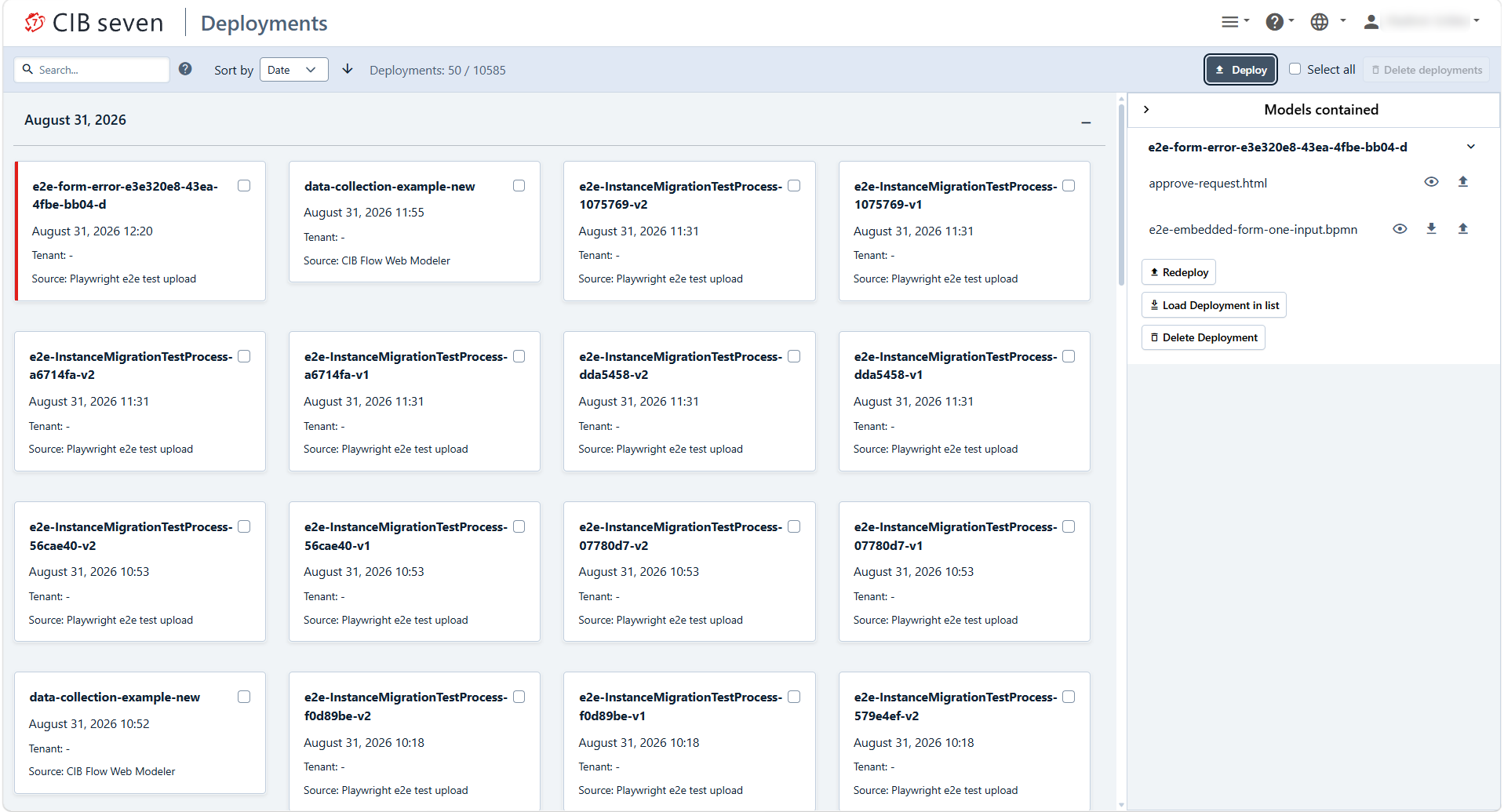
In addition to redeploying existing resources, Cockpit lets you create a brand new deployment by uploading BPMN, DMN and CMMN files directly from the deployment view — without going through the REST API or a build pipeline. This is useful for quick fixes and one-off deployments in a test or demo environment.
Redeploy
Enterprise Feature
Redeploy is available only in the Enterprise Edition.
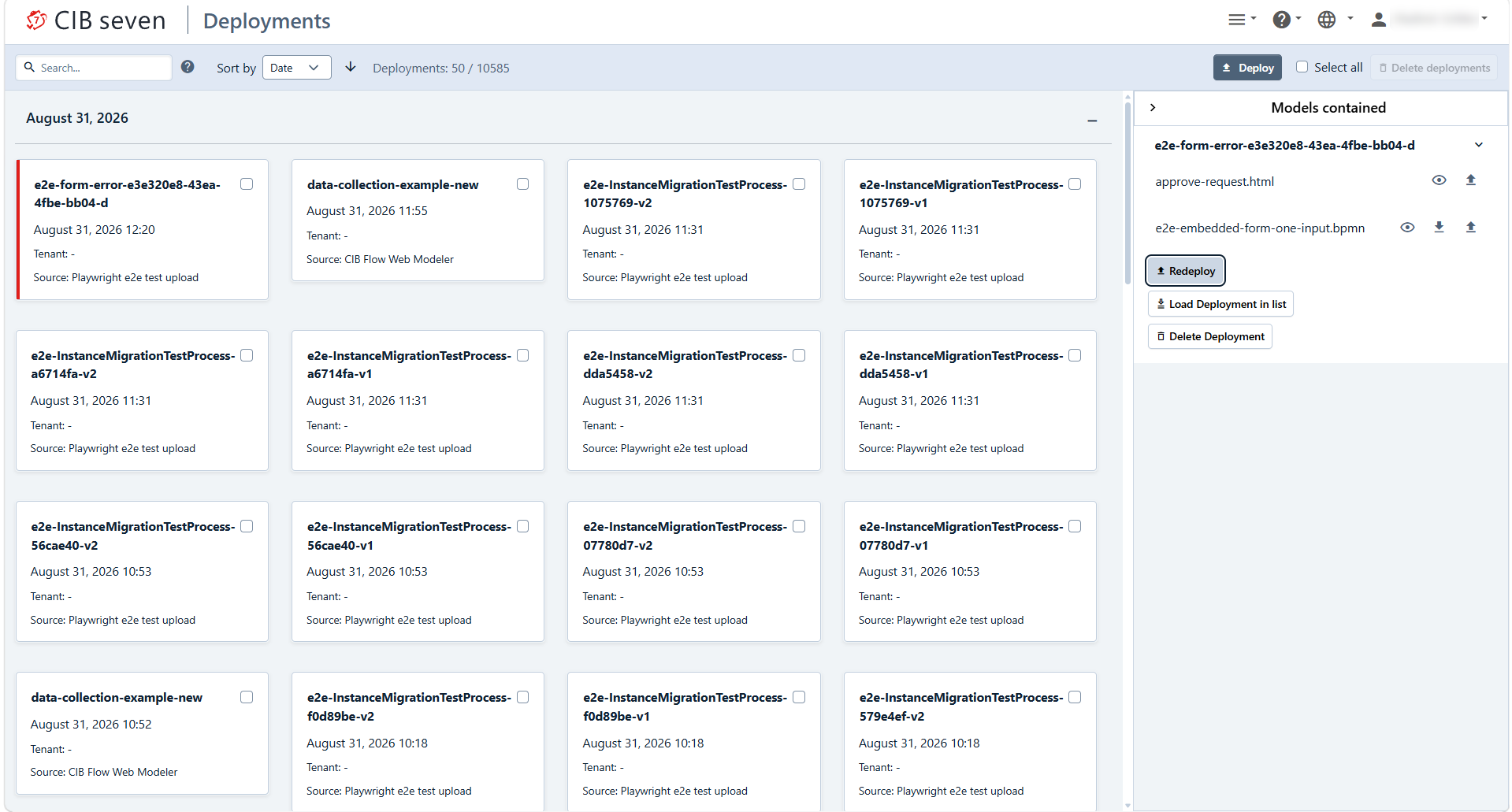
Redeploy creates a new deployment from the resources of an existing one, without needing the original files at hand. This is useful to quickly recover from an accidental deployment deletion, or to roll a resource forward into a new deployment as-is.
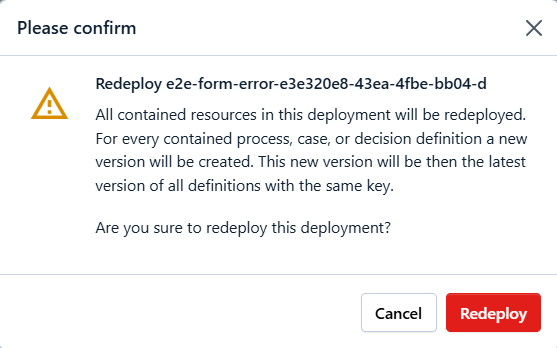
During run of the Redeploy action a confirmation dialog will appear: