BPMN AI Agent
The BPMN AI Agent adds an LLM-powered chat assistant to CIB seven Modeler. From the BPMN Agent panel you describe what you need in natural language and the agent designs, generates, edits, reviews, and explains BPMN diagrams directly on the canvas. It connects to any OpenAI-compatible model endpoint you configure — hosted (OpenAI, OpenRouter) or self-hosted (Ollama, vLLM, and others).
Enterprise Feature
The BPMN AI Agent is available only in the Enterprise Edition and requires a valid CIB seven license. It also requires the modeler to be enabled (cibseven.webclient.modeler.enabled: true); see Enable / Disable.
Prerequisites
- CIB seven Enterprise Edition with a valid license.
- The modeler enabled:
cibseven.webclient.modeler.enabled: true(a database is required — see Enable / Disable). - At least one OpenAI-compatible provider and one model configured (below).
Enabling the Agent
cibseven.webclient.modeler.ai.enabled flag enables the BPMN AI Agent for designing BPMN diagrams in the modeler. Default value is false. In our distributions it is enabled for tomcat and wildfly; for the run distribution, the agent is enabled only in dev/default mode and disabled in --production mode.
Enable it by setting enabled: true under cibseven.webclient.modeler.ai in cibseven-webclient’s application.yaml:
cibseven:
  webclient:
    modeler:
      ai:
        enabled: true
Or via environment variable:
CIBSEVEN_WEBCLIENT_MODELER_AI_ENABLED=true
Required configuration
When the agent is enabled, the defaultModel must match one of the listed models, and every listed model must reference a provider whose baseUrl is set — otherwise the webclient will not start.
Configuring an OpenAI-Compatible Provider
Providers are named entries under ai.providers; each points at an OpenAI-compatible HTTP endpoint. Set its baseUrl (required) and, where the endpoint needs authentication, an apiKey. API keys support environment-variable expansion such as ${OPENAI_API_KEY:}, so secrets stay out of the configuration file.
Typical base URLs:
- OpenAI —
https://api.openai.com/v1 - OpenRouter —
https://openrouter.ai/api/v1 - Ollama —
http://localhost:11434/v1 - vLLM / other self-hosted —
http://<host>:<port>/v1
The api field selects the API surface: chat-completions (the default, /v1/chat/completions) works with virtually every OpenAI-compatible server. Use responses (/v1/responses) for OpenAI gpt-5.x reasoning models that also use tools. See the configuration reference for all provider fields.
Defining Models
Models are listed under ai.models. Each model’s provider must match the key of a configured provider, and value is the model id sent to that endpoint. The label is shown in the model dropdown. defaultModel must equal the value of one of the listed models.
Two optional fields tune how a model is used. capability classifies the model and selects the generation path: GENERAL (the default) for capable frontier models, FAST for quick models, and LIGHTWEIGHT for small or open-weight models. contextWindow (in tokens) sizes the per-session token budget shown in the chat. Reasoning-capable models can also expose an effort control — see Reasoning effort.
Choosing a model
For day-to-day modeling, prefer a fast model (capability: FAST) — lower latency keeps the chat responsive and the experience smooth. Also configure a frontier model for complex or ambiguous requests where answer quality matters most, and switch to it from the model dropdown when needed. For a cost-efficient, self-hosted option, use a local model server — for example, the latest Gemma 4 models through Ollama.
Reasoning effort
Reasoning (or “thinking”) models can spend a variable amount of effort working out an answer before they reply: more effort generally yields a more thorough result, while less effort returns a faster reply. You expose this control per model with supportedEfforts — the reasoning levels that model accepts, listed from least to most effort:
cibseven:
  webclient:
    modeler:
      ai:
        models:
          - value: google/gemini-3.5-flash:nitro
            provider: openrouter
            label: "Gemini 3.5 Flash"
            contextWindow: 1000000
            capability: FAST
            supportedEfforts: [low, medium, high]
When a model lists effort levels, an effort selector (Low, Medium, High) appears next to it in the model dropdown of the compose box, and the agent forwards your choice to the model as its reasoning-effort setting. If you do not pick a level, the agent uses the highest one configured for that model — the most thorough, and the slowest. When a reply is taking too long, choose a lower level (for example Low) to speed it up.
A model with supportedEfforts: [] (the default) shows no effort selector and always runs at the model’s own default reasoning — this can be a good choice to reduce waiting time for frontier models and improve user experience.
Frontier models run at full reasoning
The strong frontier models — for example Opus, Sonnet, and GPT-5.x — ship with supportedEfforts: [] by default: no effort picker is shown and they always run at their own native reasoning level. This keeps the interface lean and can reduce waiting time for users who do not need to tune reasoning depth.
OpenAI reasoning models
OpenAI gpt-5.x reasoning models reject the reasoning-effort parameter on /v1/chat/completions when the request also carries tools. Configure their provider with api: responses so effort is sent on the /v1/responses endpoint.
Complete Example (OpenAI)
A minimal end-to-end configuration that enables the agent against OpenAI:
cibseven:
  webclient:
    modeler:
      enabled: true
      ai:
        enabled: true
        defaultModel: gpt-5.4-2026-03-05
        providers:
          openai:
            baseUrl: https://api.openai.com/v1
            apiKey: ${OPENAI_API_KEY:}
            api: responses
        models:
          - value: gpt-5.4-2026-03-05
            provider: openai
            label: "GPT-5.4"
            contextWindow: 400000
Set the OPENAI_API_KEY environment variable to your key — or pass it as a JVM system property (-DOPENAI_API_KEY=…); ${OPENAI_API_KEY:} resolves from either. The model then appears in the modeler’s model dropdown and is selected by default.
Other OpenAI-Compatible Endpoints
Because the agent speaks the OpenAI API, any compatible server works the same way — only the baseUrl (and, if required, apiKey) change. A local Ollama server needs no API key — point baseUrl at its OpenAI-compatible endpoint and reference the model by the name Ollama serves it under:
cibseven:
  webclient:
    modeler:
      ai:
        enabled: true
        defaultModel: gemma4:26b
        providers:
          ollama:
            baseUrl: http://localhost:11434/v1
        models:
          - value: gemma4:26b
            provider: ollama
            label: "Gemma 4 (local)"
            capability: LIGHTWEIGHT
The same models entries work against a hosted aggregator too — for example OpenRouter (baseUrl: https://openrouter.ai/api/v1, with an apiKey) exposes Gemma as google/gemma-4-26b-a4b-it:nitro.
Per-Distribution Configuration
The configuration from the example above works across all distributions. Apply the cibseven.webclient.modeler.ai properties using the distribution-specific mechanism below:
- CIB seven Run —
configuration/default.yml(orconfiguration/production.ymlwhen started with--production), under the existingcibseven.webclient.modelertree. - Tomcat —
conf/Catalina/localhost/webapp.xml, as context<Parameter>entries. - WildFly — the default configuration is bundled in the deployed WAR at
WEB-INF/classes/application-wildfly.yaml. Because the webclient is a standard Spring Boot deployment, you can override these properties without unpacking the WAR, using any of:- Environment variables set in the server’s environment before startup.
- JVM system properties added to
JAVA_OPTSin the WildFlybin/standalone.conf(in this distribution,server/wildfly-<version>/bin/standalone.conf). standalone.xmlsystem properties — a<system-properties>block instandalone/configuration/standalone.xml(in this distribution,server/wildfly-<version>/standalone/configuration/standalone.xml).
Customizing the Agent
Appending to the system prompt
You can append your own guidance to every agent’s system prompt — house modeling conventions, naming rules, preferred patterns — without replacing the built-in prompt. Set it under ai.systemPrompt:
cibseven:
  webclient:
    modeler:
      ai:
        systemPrompt:
          append: "Add a documentation field to every task and event describing its business purpose in one sentence."
          appendFile: classpath:agent/modeling-standards.md
append adds inline text; appendFile reads a classpath: or file: resource. When both are set, appendFile is added first, then append.
Adding custom skills
Skills are reusable instruction packs the agent can draw on. Point ai.skills at one or more directories, each laid out as <dir>/<skill>/SKILL.md — one subfolder per skill, with a SKILL.md inside:
cibseven:
  webclient:
    modeler:
      ai:
        skills:
          - /opt/cibseven/agent-skills
A directory that does not exist is skipped with a warning, so a missing path never blocks startup.
For example, the layout for a data-quality skill would be:
/opt/cibseven/agent-skills/
└── error-handling/
    └── SKILL.md
SKILL.md contains the instruction text the agent receives when it activates the skill:
---
name: error-handling
description: Checks that every service task has an error boundary event.
---

Every service task must have at least one error boundary event leading to an error-handling path.
Flag any service task that is missing one and suggest where to add it.
Using the Agent
Open a BPMN diagram, then open the BPMN Agent panel from the modeler toolbar. The panel docks beside the canvas — you can float, resize, or collapse it, and its position is remembered between sessions. Type what you want in natural language and send it; the agent’s reply streams in live, and you can Stop a running request at any time.
Composing a request
The compose box at the bottom gives you several ways to shape a request:
- Model — pick the model from the dropdown; for reasoning models a reasoning effort level is shown next to it. See Reasoning effort for how to use it to speed up replies.
- Mode — choose how the agent should act on the request (for example, ask a question about the diagram instead of editing it).
- Context — select elements on the canvas to attach them as context, and attach files for the agent to take into account.
- Voice — dictate a request instead of typing it; set the recognition language in Settings.
- Token budget — an indicator shows how much of the per-session context budget (the
maxTokenssetting) the conversation has used.
Writing effective requests
The agent works best with clear, specific requests and the right context attached:
- Be specific. State the goal, the participants, and the key steps — “Model an order-to-cash process: receive order, check stock, ship, invoice, handle payment” beats “make an order process”.
- Pick the mode that matches your intent — ask to understand a diagram, plan to outline a larger change first, edit to change or generate the process directly without a planning step.
- Attach context. Select the elements you mean before sending, and attach files (an existing BPMN/DMN, a specification, a screenshot) so the agent works from your material instead of guessing.
- Iterate. If a result is close, ask the agent to revise it (“rename the gateway and add a timeout path”) rather than restating the whole request.
- Review every change on the diff card before applying it — see Reviewing and applying changes.
Example prompts:
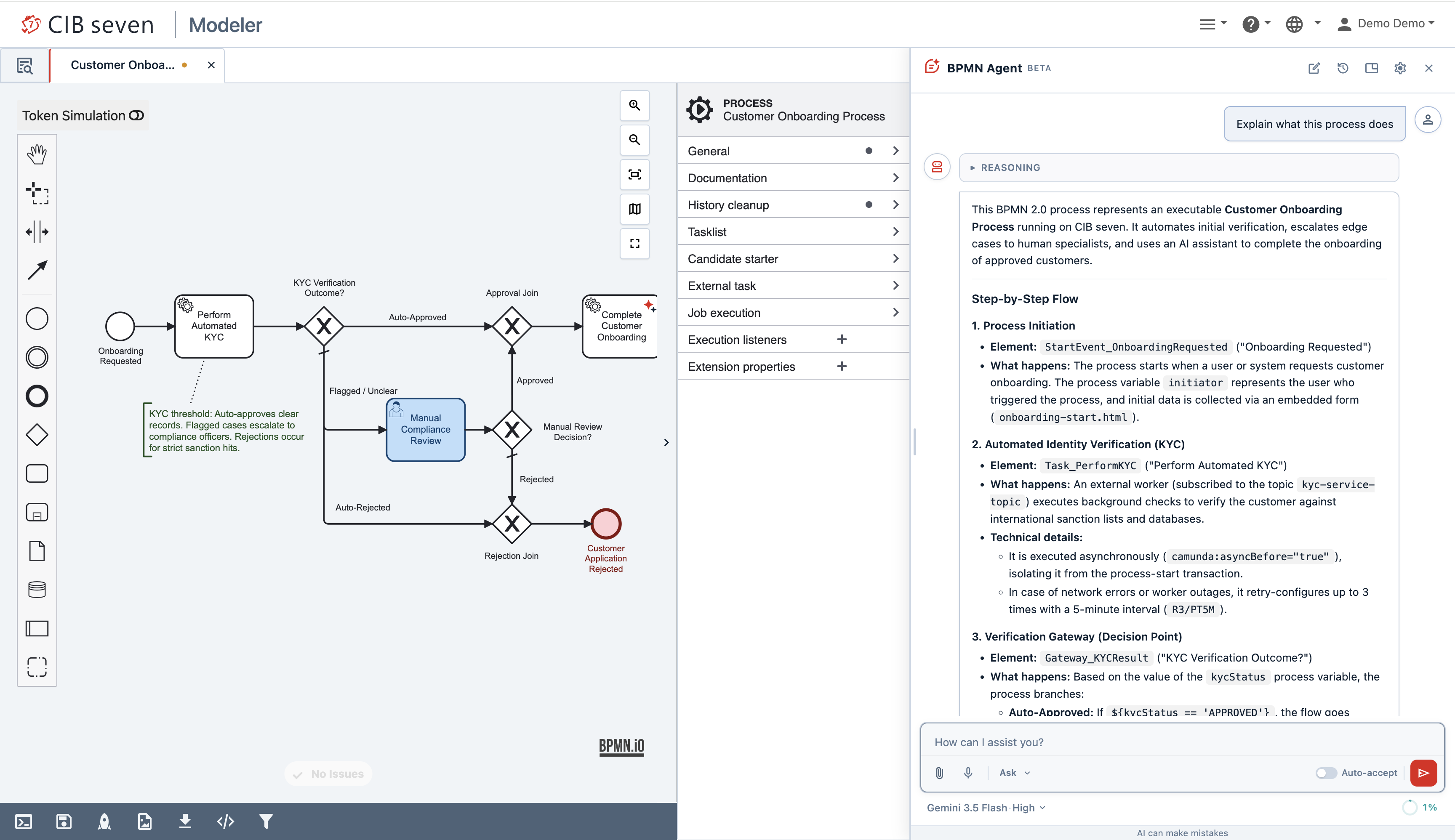
- “Explain what this process does and flag anything that looks wrong.” (ask)
- “Add a parallel branch after Approve request that notifies the applicant by email.” (edit — modifying an existing diagram)
- “Generate a leave-request process: employee submits, manager approves or rejects, HR is notified of the outcome.” (edit — generating from scratch)
Reviewing and applying changes
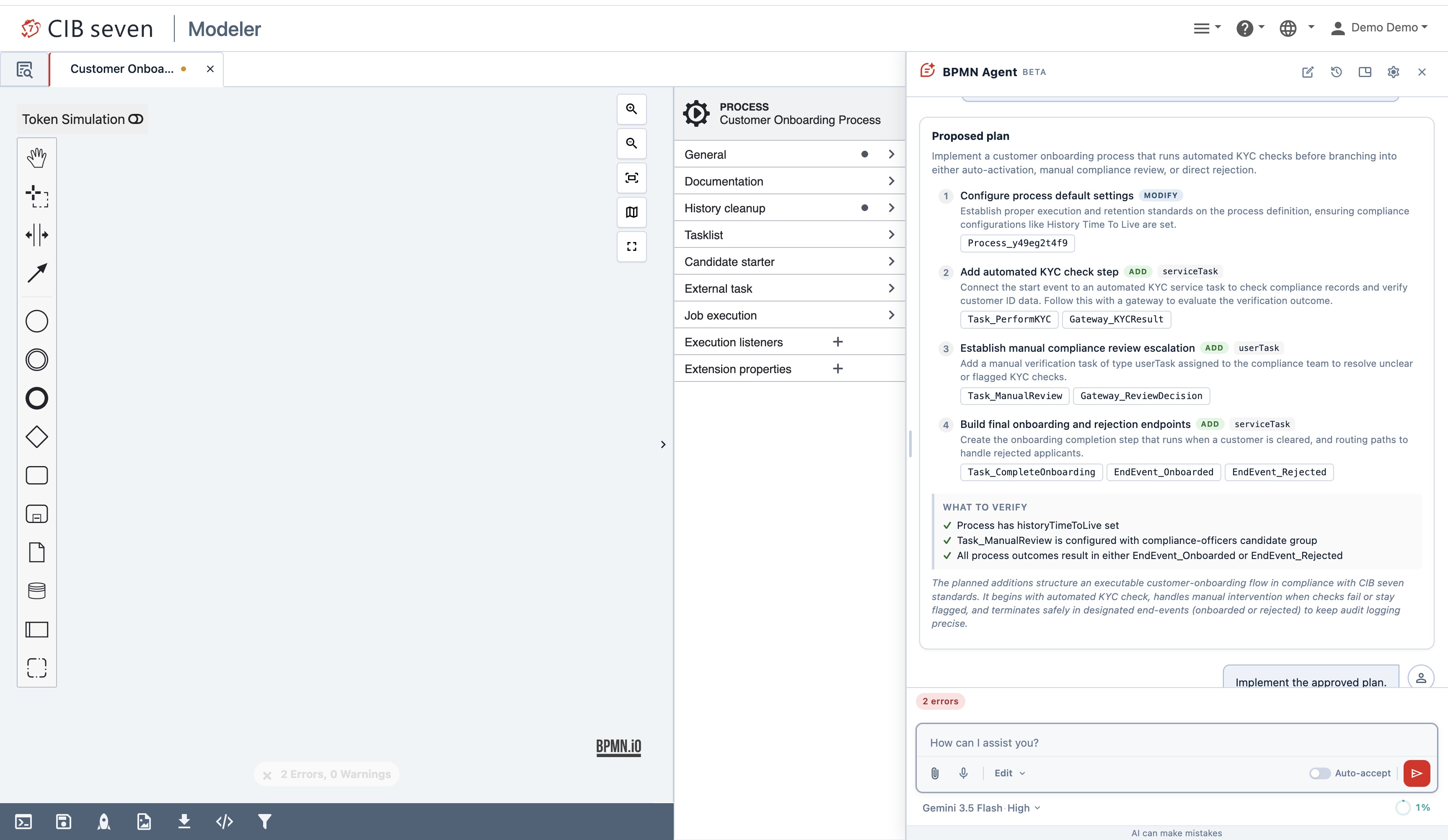
In plan mode the agent first proposes a plan before making changes, which you can review and adjust before any edit is applied.
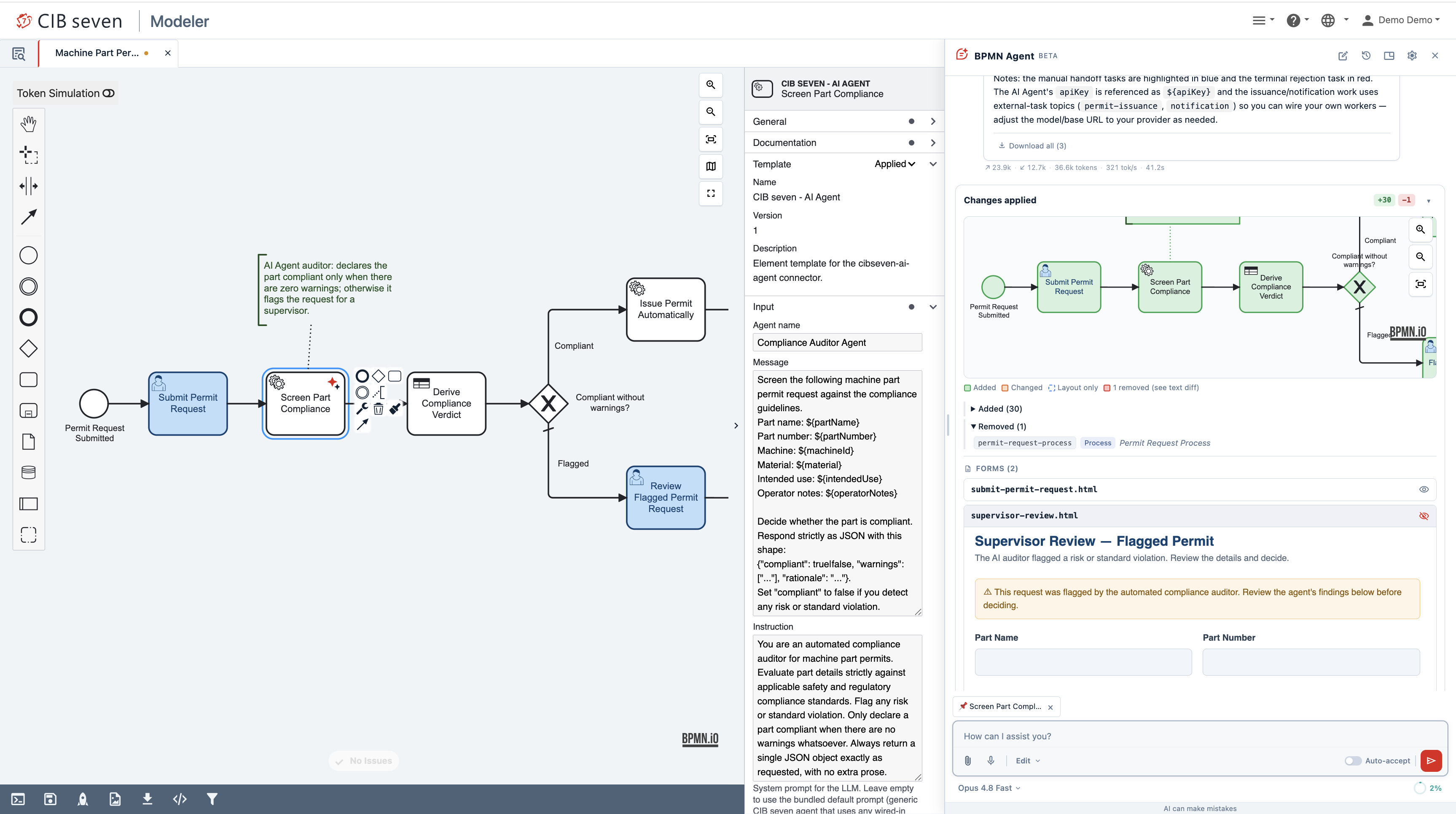
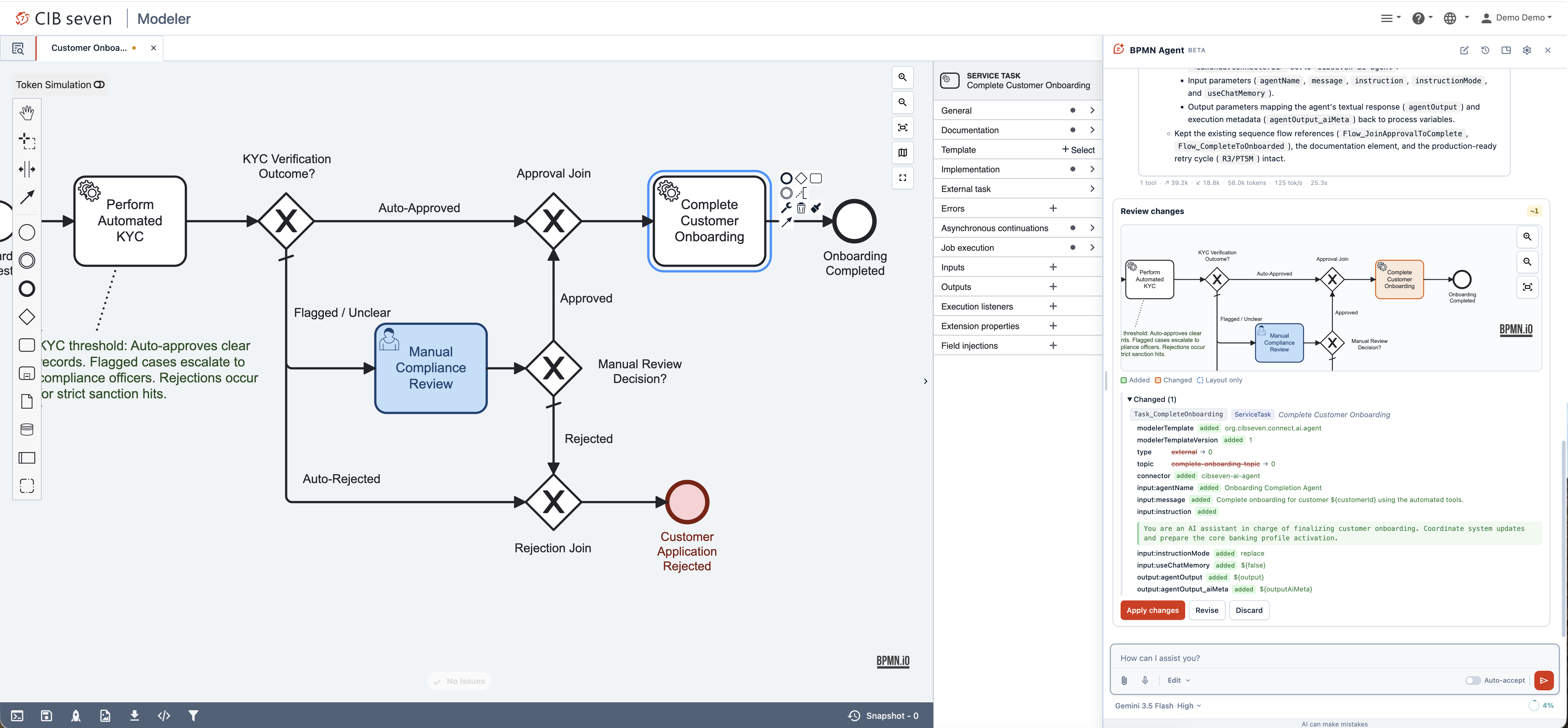
When the agent modifies the diagram, the change is shown as a diff card listing the added, changed, and removed elements. Review it and Apply or Discard it, or ask the agent to revise it. Enable the Auto-accept toggle to apply edits automatically without confirming each one; the layout is tidied up automatically when needed.
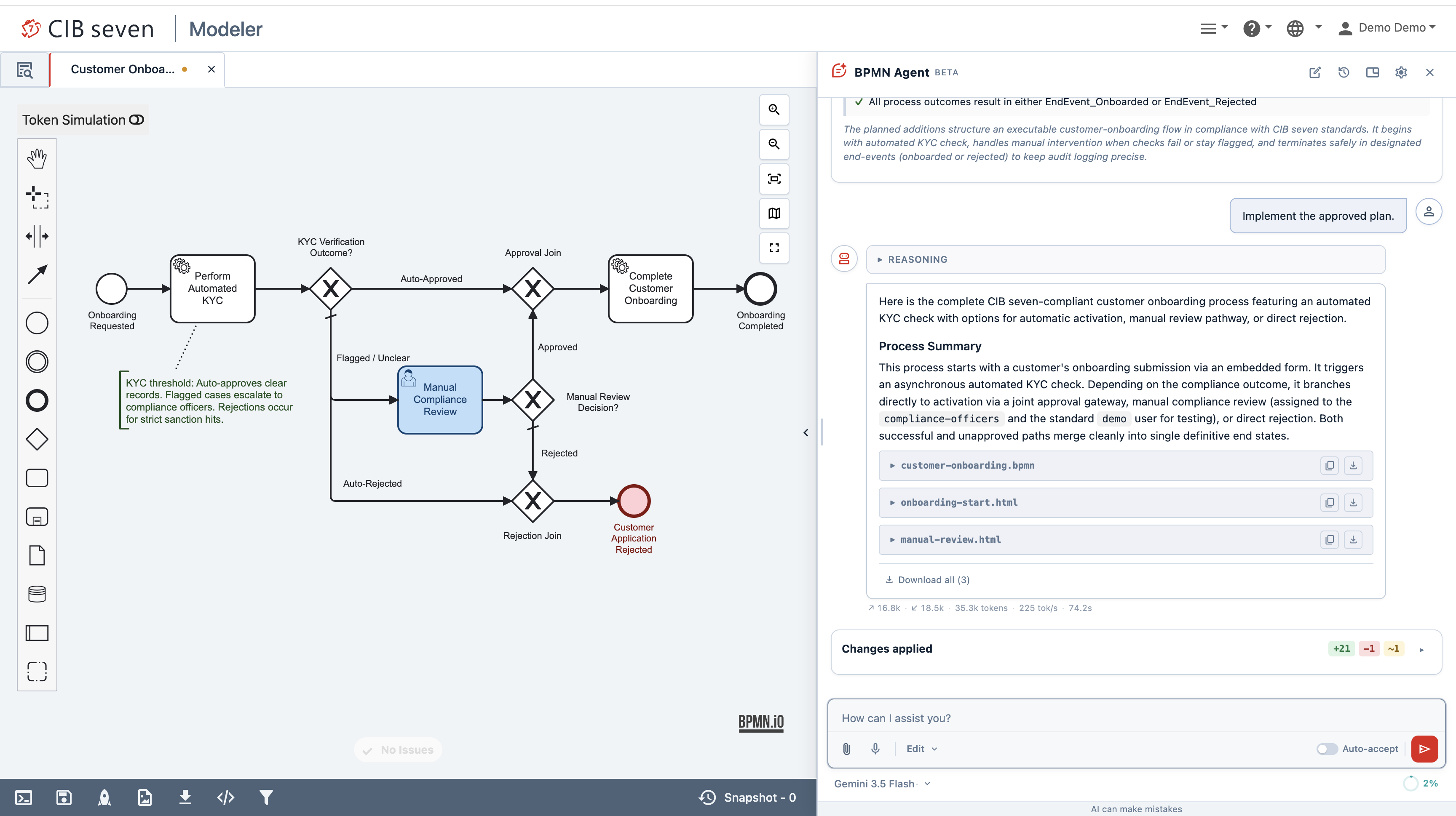
As the agent works through the plan one step at a time, the panel shows its reasoning summary, the files it generates, and the changes it applies for each step — continue to the next step, skip one, modify it, or reject the remaining steps. If you want faster results, choose quick draft to implement the whole plan in one pass instead.
Not every request changes the diagram. In ask mode the agent only answers — it explains what the process does, walks through it step by step, and flags anything that looks wrong, without proposing any edits. Use it to understand an unfamiliar diagram or to review one before you start changing it.
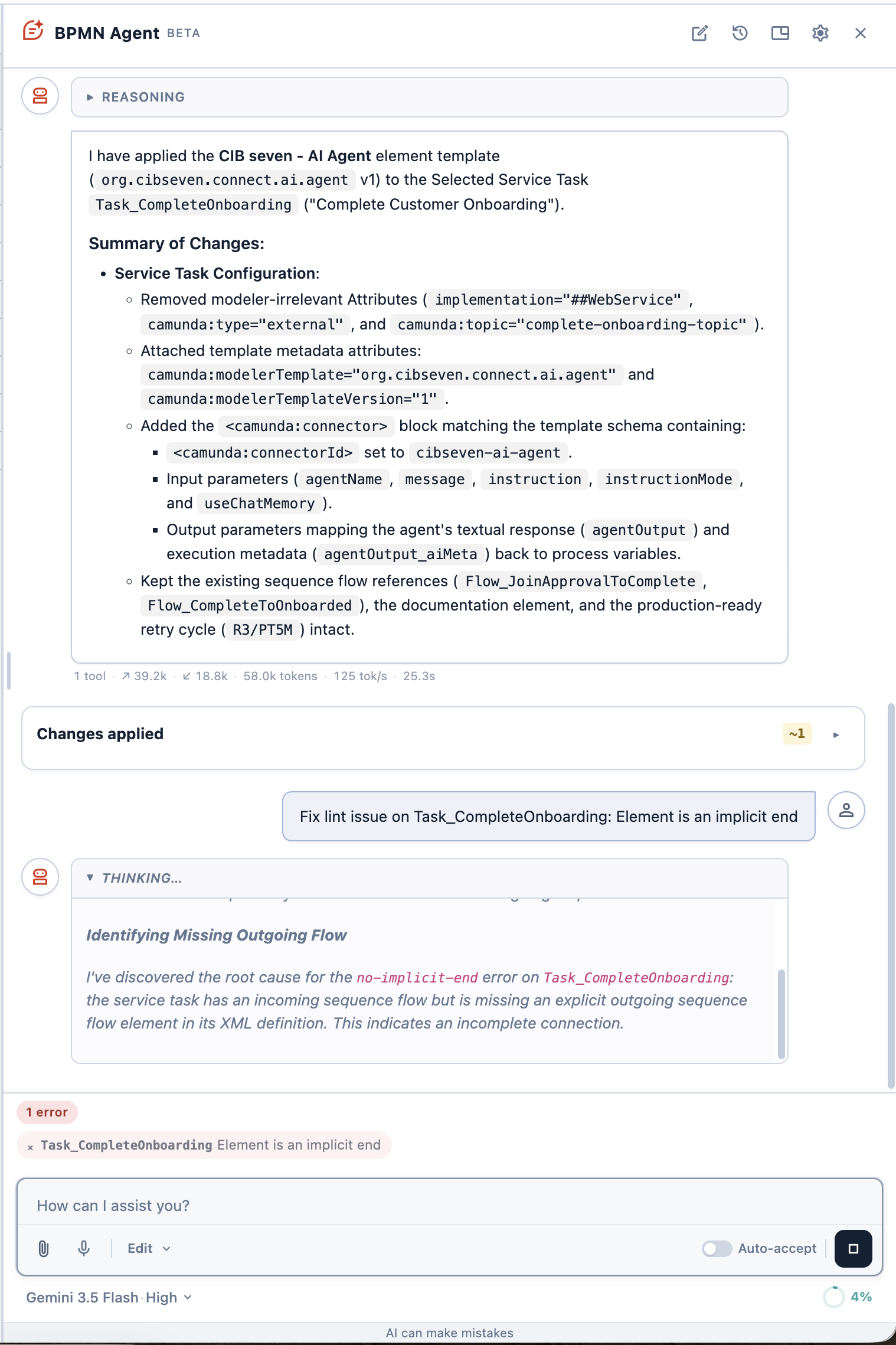
Fixing validation issues
When the diagram has BPMN validation problems, the panel lists them inline with the number of errors and warnings, each with a quick-fix the agent applies on click.
Chat sessions
Each conversation is kept as a session. Start a new chat, switch between previous sessions from the history, and delete the ones you no longer need.
Settings
Open the settings dialog from the gear icon in the panel header to adjust how the agent behaves. Settings are remembered per browser.
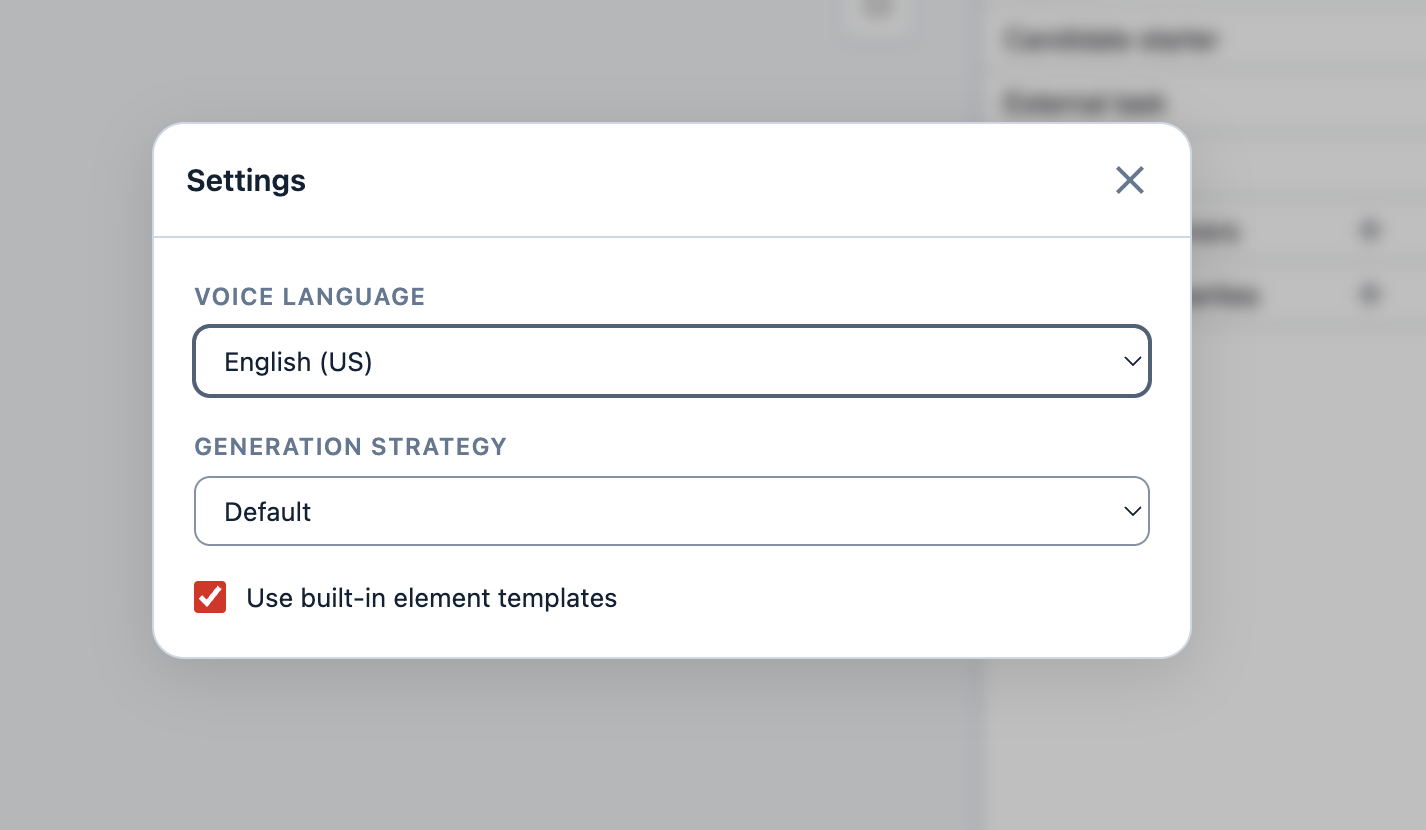
- Voice language — the language used for voice dictation: Deutsch, English (US), English (UK), Español, Русский, or Українська.
- Generation strategy — how the agent produces a diagram. Default lets the agent pick the best approach for the selected model. Pure reasoning makes it edit the BPMN XML directly and reason through the whole change, with no shortcuts — the most faithful path, but slower. Fast mode takes a quicker route that skips full-XML reasoning — best for simple changes.
- Use built-in element templates — whether the modeler’s element templates are sent to the model as context, so it can reuse the tasks and connectors you have configured. See Data Handling and Privacy.
Limitations
The agent is a generative assistant: it speeds up modeling, but it can be wrong. The chat itself reminds you that “AI can make mistakes”, and AI-generated content is marked as such.
- Always review changes before applying them. Every edit is shown as a diff card you can Apply or Discard before it touches the canvas.
- Results vary. The same request can produce different diagrams on different runs; lower reasoning effort trades some quality for speed.
- Context is bounded. Large diagrams, many attached files, and long conversations consume the per-session token budget; when it runs low, start a new chat or attach less context. Per-request input sizes are also capped (see Configuration Reference).
- Cost scales with usage. With hosted providers you pay per token, so more context and higher effort cost more; a self-hosted model removes per-token cost.
- Embedded and form-js forms are not yet supported. The agent can generate processes and standalone forms; tight integration with embedded and form-js forms will be available in upcoming versions.
Beta
The BPMN AI Agent is currently in beta. Review generated diagrams before deploying them.
Data Handling and Privacy
The agent sends only what you provide and what is on the diagram you are working on — nothing else from the engine or your other diagrams. When you send a request, it transmits to the model provider you configured: your message, any files you attach, the current canvas BPMN XML, and the element templates. Nothing is sent until you send a request.
- Element templates are loaded when needed. The agent can include the modeler’s element templates in the request when the context calls for it, so it can reuse the tasks and connectors you have configured. If you do not want the LLM to load templates, turn off Use built-in element templates in the chat settings.
- Choose where your data goes. Hosted endpoints (OpenAI, OpenRouter) process this data on the vendor’s servers under their terms. To keep everything on your own infrastructure, point a provider at a self-hosted OpenAI-compatible server such as Ollama or vLLM — only the
baseUrlchanges (see Other OpenAI-Compatible Endpoints). - Keep secrets out of config. Provide API keys through environment variables (
${OPENAI_API_KEY:}) rather than inline, so they stay out of configuration files.
Troubleshooting
| Symptom | Likely cause and fix |
|---|---|
| The BPMN Agent panel or option is missing | The agent is disabled (cibseven.webclient.modeler.ai.enabled: false), the modeler is disabled, or no valid license is present — see Enabling the Agent. |
| Authentication / endpoint errors | Wrong apiKey or baseUrl, or the key lacks access to the model. |
| Replies are too slow | Switch to a fast model, or lower the reasoning effort on models that expose it. |
Configuration Reference
All properties live under the cibseven.webclient.modeler.ai prefix.
Agent options
| Property | Default | Description |
|---|---|---|
enabled |
false |
Master switch for the agent. |
defaultModel |
– | Model value selected by default; must match a listed model. |
maxTokens |
50000 |
Per-session chat-memory token budget (input + history). |
limits.messageMaxChars |
600000 |
Max characters in a user message. |
limits.filesMaxCount |
10 |
Max attached files per request. |
limits.filesMaxBytesPerFile |
5242880 |
Max size (bytes) of any single attached file. |
limits.currentBpmnXmlMaxChars |
500000 |
Max characters of canvas BPMN XML sent per request. |
limits.elementTemplatesMaxCount |
1000 |
Max element templates sent per request. |
systemPrompt.append |
– | Inline text appended to every agent system prompt. |
systemPrompt.appendFile |
– | A classpath: or file: resource appended to every system prompt. |
skills |
– | Extra skill directories, each laid out as <dir>/<skill>/SKILL.md. |
Provider options (providers.<name>)
| Property | Default | Description |
|---|---|---|
baseUrl |
– (required) | OpenAI-compatible base URL, e.g. https://api.openai.com/v1. |
apiKey |
– | Bearer token sent as Authorization; supports ${ENV_VAR:} expansion. |
timeoutSeconds |
300 |
Per-request timeout. |
api |
chat-completions |
API surface: chat-completions or responses (needed for gpt-5.x reasoning + tools). |
headers |
– | Extra HTTP headers added to every request (values support ${ENV_VAR:}). |
Model options (entries under models)
| Property | Default | Description |
|---|---|---|
value |
– (required) | Model id sent to the endpoint. |
provider |
– (required) | Key of a configured provider. |
label |
– | Name shown in the model dropdown. |
contextWindow |
– | Context size in tokens. |
capability |
GENERAL |
GENERAL, FAST, or LIGHTWEIGHT. |
supportedEfforts |
[] |
Reasoning effort levels offered in the model dropdown, e.g. [low, medium, high]; empty hides the effort selector. See Reasoning effort. |